
Happy Horse 1.1 is now live, and the important change is not just a version number. The new model expands the Happy Horse workflow across text-to-video, image-to-video, and reference-to-video, with better prompt understanding, smoother motion, stronger visual consistency, and cleaner output quality across all three modes.
We have already updated the Try Happy Horse AI generator around the 1.1 model path, including model selection and public example imports, so this guide is written from an implementation and creator-workflow point of view. The short version: use Happy Horse 1.1 as your default for new text, image, and reference-based video jobs; keep Happy Horse 1.0 for video edit until 1.1 edit support is officially documented.
If you want to test it directly, open the AI video generator and choose Happy Horse 1.1 from the model selector.
What Is Happy Horse 1.1?
Happy Horse 1.1 is the upgraded HappyHorse video generation model now available in Try Happy Horse AI. It supports three production modes: text-to-video, image-to-video, and reference-to-video.
That matters because Happy Horse 1.0 was already strong as a general AI video model, but 1.1 shifts the workflow toward choosing the right control mode for the job. The upgrade is most useful when you care about:
- turning a prompt into a coherent short clip
- animating a first-frame image without losing the original composition
- using multiple reference images to preserve identity, wardrobe, props, or style
- choosing aspect ratio, duration, and resolution more deliberately
In our 1.1 rollout, the practical improvements show up most clearly in prompt understanding, motion smoothness, visual consistency, and output polish across the three creation modes.
That is the practical definition: Happy Horse 1.1 is the new default model for prompt-first, first-frame, and multi-reference video generation.
What Changed From Happy Horse 1.0?
The biggest 1.1 improvement is workflow reliability. Happy Horse 1.1 does not replace every Happy Horse 1.0 feature yet, but it makes the three core creation modes more useful for creators and teams.
Here is the clean product read:
| Area | Happy Horse 1.0 | Happy Horse 1.1 | What it means |
|---|---|---|---|
| Text-to-video | Strong general model | Better prompt understanding and smoother motion | Better default for prompt-led clips |
| Image-to-video | Strong first-frame animation | More consistent first-frame motion workflow | Better for portraits, products, and cinematic stills |
| Reference-to-video | Available as a reference workflow | Stronger multi-reference workflow | Better for character, wardrobe, prop, and style control |
| Framing | Broad video output support | More flexible framing choices | Easier social, landscape, and ultrawide planning |
| Duration | Short clip generation | More flexible short-clip planning | Better for ads, examples, and concept shots |
| Video edit | Supported in the existing edit flow | Not part of the 1.1 creation flow yet | Keep video edit on 1.0 for now |
The useful framing is not "1.1 is higher quality." It is:
- use 1.1 text-to-video when the prompt carries the scene
- use 1.1 image-to-video when the first frame carries the composition
- use 1.1 reference-to-video when multiple visual references carry identity and style
- use 1.0 video edit when you need edit-specific behavior today
That last point matters. For users, the boundary is simple: Happy Horse 1.1 is for new generation work, while the current video-edit experience remains on the stable Happy Horse 1.0 path.
Which Happy Horse 1.1 Mode Should You Use?
The fastest way to get better 1.1 results is choosing the right mode before you write the prompt.
For a page-by-page walkthrough with screenshots, settings, prompt templates, and sample videos, read the Happy Horse 1.1 generator guide.
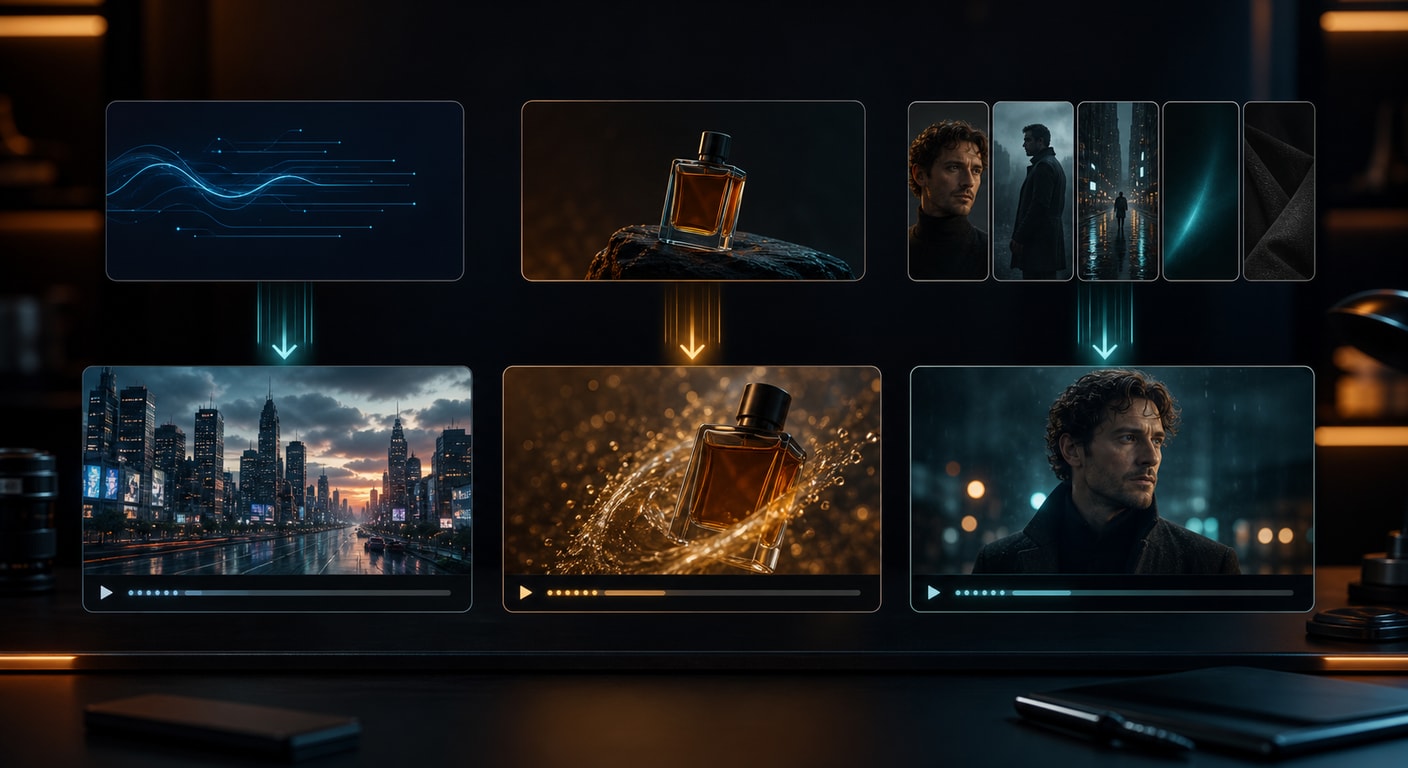
Use text-to-video when the idea is still flexible
Text-to-video is the best starting point when you do not already have a strong source image. Use it for new scenes, concept exploration, social clips, ad variations, and cinematic tests.
Good text-to-video prompts should include:
- subject
- action
- environment
- camera movement
- lighting and mood
- output framing
Text-to-video is also where aspect ratio matters most. If the output is for YouTube, start wide. If it is for TikTok, Reels, or Shorts, start vertical. Choosing the frame before generation usually gives cleaner results than trying to crop later.
Use image-to-video when composition matters
Image-to-video is the right mode when you already have the visual frame you want: a portrait, a product photo, a mood board still, a campaign frame, or a concept image.
The input image does half the instruction work. Happy Horse 1.1 works better when you ask for motion that belongs inside the still:
- subtle blink, breathing, and hair movement for portraits
- steam, mist, and slow camera drift for product shots
- clouds, rain, particles, and push-in movement for landscapes
- reflection shifts and light sweeps for premium commercial images
Image-to-video behaves differently from text-to-video because the first frame carries the composition. If you want a vertical clip, start with a vertical source image. If you want a widescreen clip, crop or prepare the source image that way before generation.
For deeper first-frame prompting, read Happy Horse AI Image to Video: Complete Guide with Examples.
Use reference-to-video when consistency matters
Reference-to-video is the mode to use when identity, outfit, product details, props, or scene references matter more than pure prompt freedom.
This is the most important creative upgrade in the 1.1 workflow. Instead of cramming every detail into text, you can provide visual anchors and then describe what each reference should control.
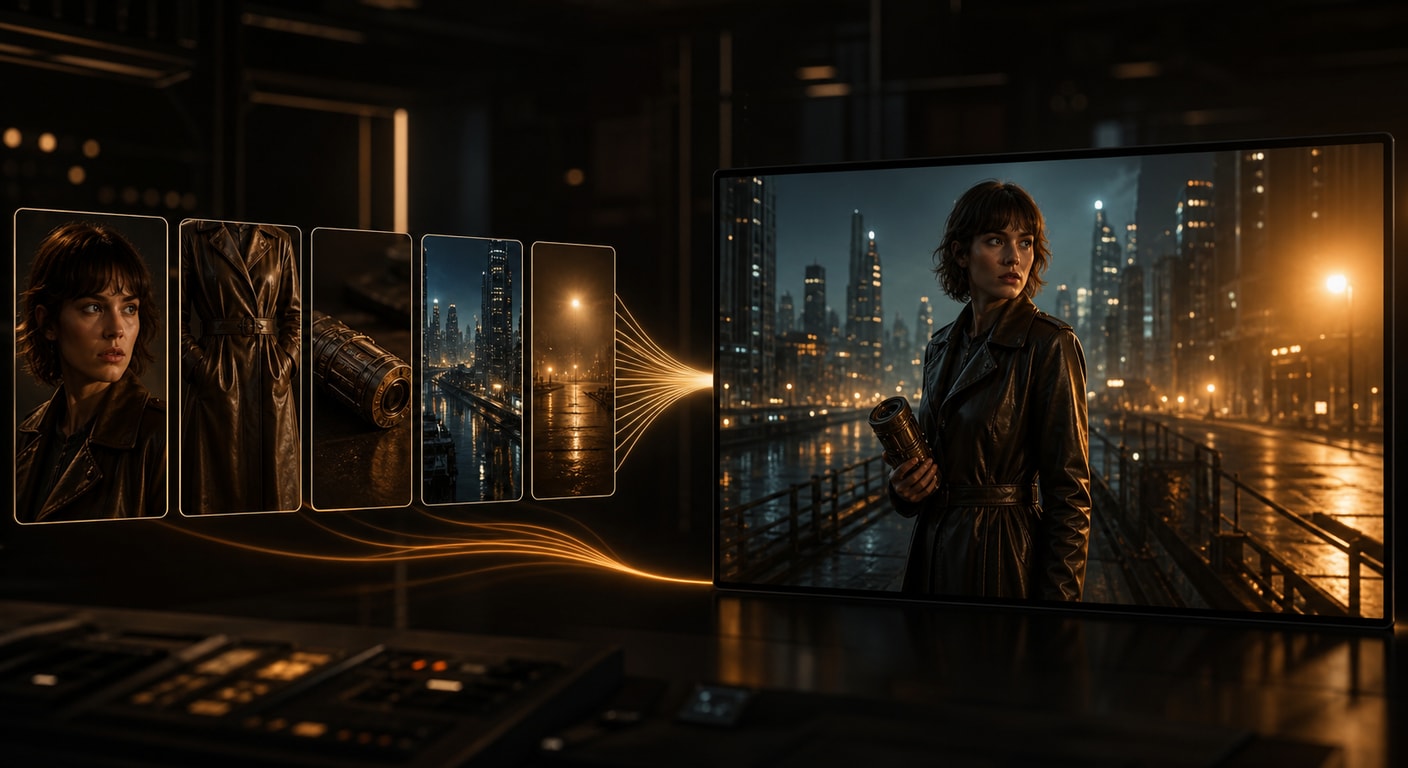
Use reference-to-video for:
- character consistency across wardrobe and environment changes
- product videos where the item shape must stay stable
- ad scenes that combine a person, object, location, and lighting mood
- cinematic concepts where style references matter as much as the prompt
- creator content where the subject should remain recognizable
Do not only write "use the images." Write what each reference controls:
"Keep the same woman, black leather coat, handheld camera lens, rainy city street, and warm streetlight mood. Use a slow tracking shot with realistic motion."
Happy Horse 1.1 Controls Worth Knowing
You do not need to think about technical setup to use Happy Horse 1.1 well. The useful controls are the ones that shape the clip before generation starts: input type, framing, duration, resolution, and reference structure.
Here is the user-facing picture:
| Workflow | Main input | Best control lever | Watch out for |
|---|---|---|---|
| Text-to-video | Prompt | Aspect ratio and scene description | Vague prompts create generic motion |
| Image-to-video | First-frame image | Source image quality and crop | The source frame strongly influences output shape |
| Reference-to-video | Multiple visual references | Clear mapping between references and prompt | Unclear reference roles can reduce consistency |
| Video edit | Existing video | Edit instruction | Use the existing 1.0 edit flow for now |
The framing decision is especially important:
| Ratio | Best fit |
|---|---|
16:9 | YouTube, landing pages, widescreen ads |
9:16 | TikTok, Reels, Shorts |
1:1 | Feed posts and compact placements |
4:5 / 5:4 | Social ads and editorial crops |
3:4 / 4:3 | Portrait or classic presentation framing |
9:21 / 21:9 | Tall mobile experiments or ultrawide cinematic shots |
For creators, the takeaway is simple: if you know your target channel, set the ratio before generation. If you are animating a first-frame image, crop the input image to the target ratio first because I2V follows the image itself.
How We Are Using 1.1 on Try Happy Horse AI
On Try Happy Horse AI, Happy Horse 1.1 is the default choice for new text-to-video, image-to-video, and reference-to-video jobs. The generator now exposes a model selector so you can choose between available Happy Horse versions directly.
That product decision follows three rules:
- Model choice should be visible. Users should know whether they are testing 1.0 or 1.1.
- The workflow should stay simple. Most creators should only need to choose the model and creation mode.
- Unsupported modes should not be implied. Since video edit is not part of the current 1.1 creation flow, the video-edit page should continue using a compatible 1.0 path.
If your job is a fresh generation, choose Happy Horse 1.1. If your job is editing an existing video, use the video edit workflow and expect it to remain tied to the supported 1.0 configuration until 1.1 edit support is documented.
Try it here: generate a Happy Horse 1.1 video.
Prompting Tips for Better Happy Horse 1.1 Results
Happy Horse 1.1 rewards clean input structure. The prompt still needs to describe motion, camera, and constraints clearly.
Text-to-video prompt formula
Use this structure:
- subject and scene
- motion or action
- camera movement
- lighting and mood
- style boundary
- aspect ratio or platform context
Example:
A glass perfume bottle rests on wet black stone at night, amber mist drifting around it, slow cinematic push-in, shallow depth of field, premium commercial lighting, realistic reflections, no text, 16:9.
Image-to-video prompt formula
Use the image as the anchor and ask for restrained movement:
Animate the first-frame portrait with subtle blinking, natural breathing, soft hair movement, and a slow cinematic push-in. Preserve the face, outfit, lighting, and background composition.
Reference-to-video prompt formula
Map each reference image to a job:
The person in [Image 1] walks through the rainy city from [Image 3], wearing the jacket from [Image 2], holding the product from [Image 4]. Keep the warm streetlight mood from [Image 5], with a slow tracking shot and realistic motion.
For a broader prompt library, use 50 Happy Horse AI Prompts That Actually Work as a starting point, then adapt each prompt to the 1.1 mode you are using.
The Bottom Line
Happy Horse 1.1 should be your default Happy Horse model for new video generation. It improves the three most important creation paths: prompt-only scenes, first-frame animation, and multi-reference consistency.
The best way to choose is simple:
| Your job | Use this mode |
|---|---|
| You only have an idea | Happy Horse 1.1 text-to-video |
| You have a strong image | Happy Horse 1.1 image-to-video |
| You need identity, prop, or style consistency | Happy Horse 1.1 reference-to-video |
| You need video edit today | Happy Horse 1.0 video edit |
That is the version boundary as of June 2026. Happy Horse 1.1 is already worth switching to for new generation work, but it should not be treated as a video-edit replacement yet.
Start with the AI video generator, pick Happy Horse 1.1, and choose the mode based on what kind of input you actually have.
FAQ
Is Happy Horse 1.1 live?
Yes. Happy Horse 1.1 is available in the Try Happy Horse AI generator for text-to-video, image-to-video, and reference-to-video workflows.
What is new in Happy Horse 1.1?
Happy Horse 1.1 improves prompt understanding, motion smoothness, visual consistency, and output quality across T2V, I2V, and R2V workflows. It is especially useful when you need better first-frame animation or multi-reference control.
Does Happy Horse 1.1 support image-to-video?
Yes. Happy Horse 1.1 supports image-to-video. Use a strong first-frame image and ask for motion that fits the source composition.
Does Happy Horse 1.1 support reference-to-video?
Yes. Happy Horse 1.1 supports reference-to-video. It is the best mode when you need stronger subject, wardrobe, object, or style consistency.
Does Happy Horse 1.1 support video edit?
Not in the current user-facing 1.1 creation flow. For now, use Happy Horse 1.0 for video edit workflows and use 1.1 for text-to-video, image-to-video, and reference-to-video.
Which model should I choose: Happy Horse 1.0 or 1.1?
Choose Happy Horse 1.1 for new generation work. Choose Happy Horse 1.0 when you specifically need a video-edit workflow that is still documented on the 1.0 path.