
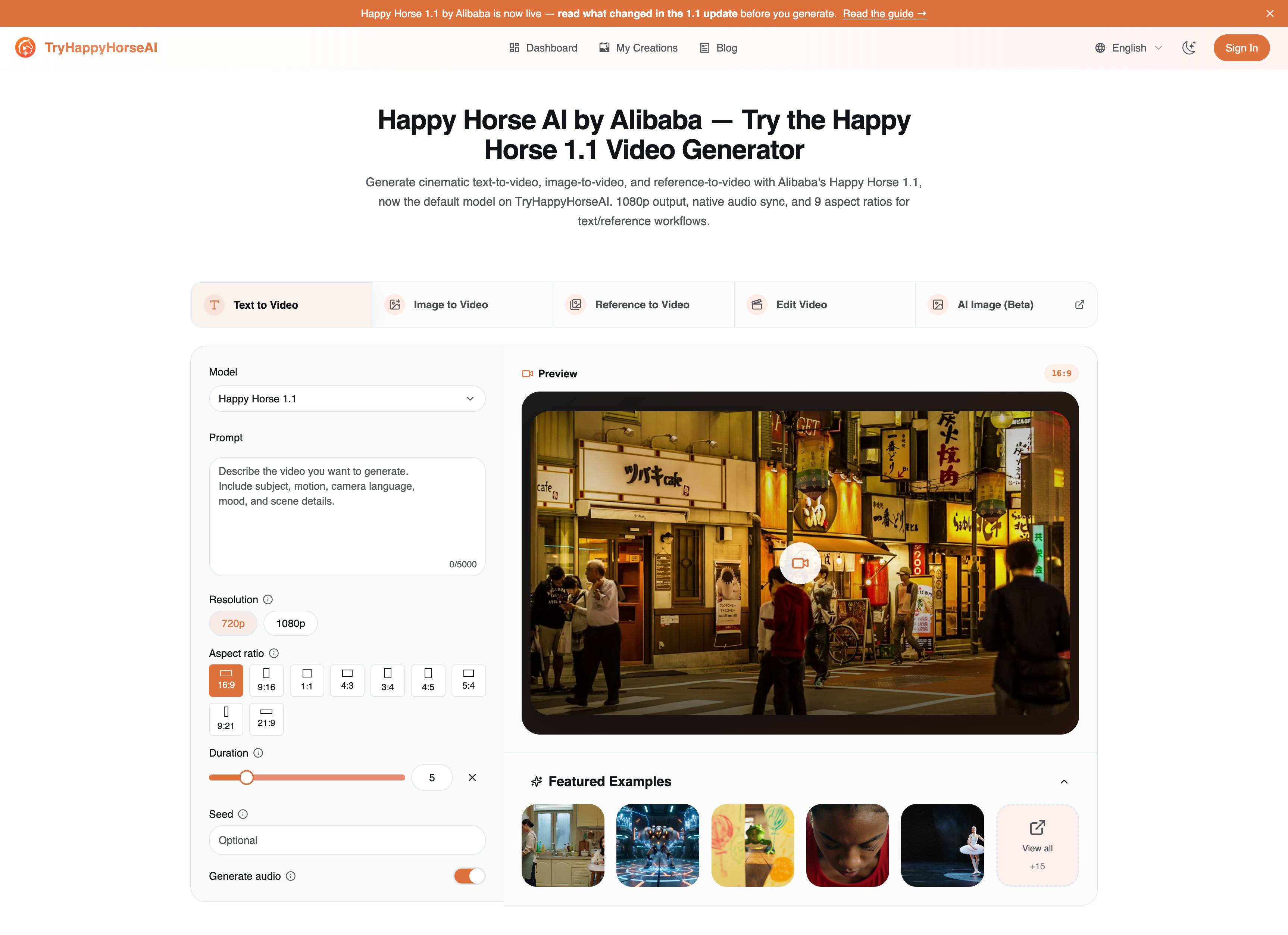
Happy Horse 1.1 is easiest to use when you start from the right generator page. Use text-to-video when the idea only exists as a prompt, image-to-video when you already have a strong first frame, and reference-to-video when character, product, or style consistency matters more than pure prompt freedom.
We captured the screenshots in this guide from the live TryHappyHorseAI generator on June 24, 2026, after the public pages finished loading. If you want the broader release overview first, read Happy Horse 1.1 Is Live: What Changed and How to Use It. You can also start from the Happy Horse AI video generator hub if you want to compare all creation modes before choosing a dedicated page. This article is the practical companion: which page to open, which settings to touch, how to write the prompt, and which examples to study.
The Fast Workflow Map
The three Happy Horse 1.1 creation pages are separate for a reason. They all generate video, but each one expects a different starting asset.
| Page | Start with | Best for | Open it |
|---|---|---|---|
| Text to Video | A written scene | Concept clips, cinematic tests, social ideas, ad variants | Text to Video |
| Image to Video | One first-frame image | Product motion, portraits, posters, visual loops | Image to Video |
| Reference to Video | Up to 9 reference images | Character identity, wardrobe, product details, repeated campaign style | Reference to Video |
The mistake to avoid is using a longer prompt to compensate for the wrong mode. If you already have the exact product photo, image-to-video will usually beat text-to-video. If you need the same person or outfit preserved across a new scene, reference-to-video will usually beat both.
1. Text to Video: Build the Scene From Scratch
Use Text to Video when the scene is still flexible. This is the fastest mode for exploring ideas because the prompt carries the whole shot: subject, action, camera, environment, lighting, mood, and audio direction.
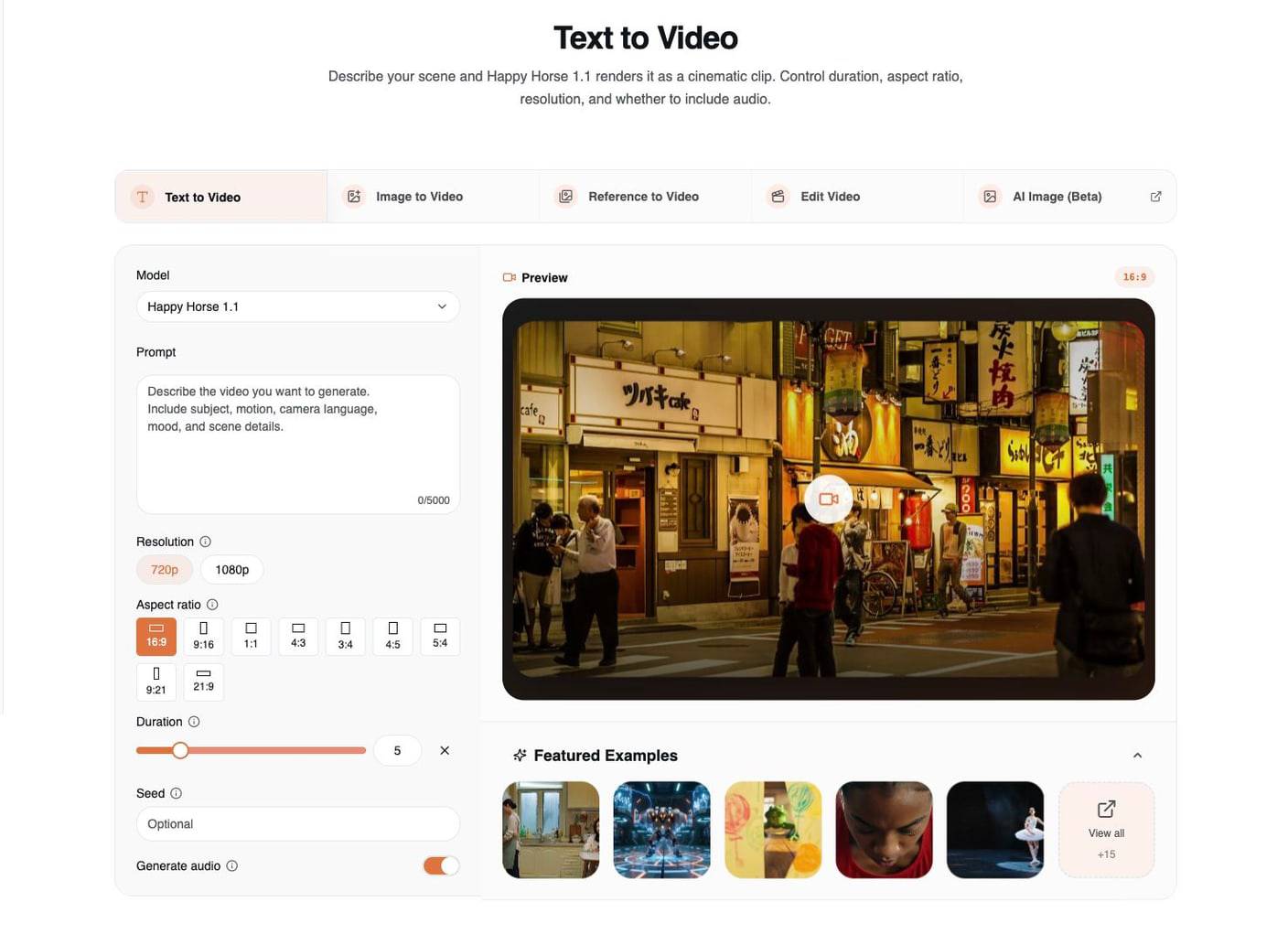
The most important controls on this page are:
| Control | Practical use |
|---|---|
| Model | Choose Happy Horse 1.1 for new T2V work. |
| Prompt | Describe the visible scene, camera movement, mood, and audio. |
| Resolution | Use 720p for faster iteration and 1080p for stronger final renders. |
| Aspect ratio | Pick the target format before generation: 16:9, 9:16, 1:1, 4:3, 3:4, 4:5, 5:4, 9:21, or 21:9. |
| Duration | Choose a short clip length from 3 to 15 seconds. |
| Seed | Reuse a seed when you want a more repeatable variation path. |
| Generate audio | Keep it on when the scene benefits from dialogue, ambience, or action sound. |
The cleanest text-to-video prompt formula is:
Subject + action + environment + camera movement + lighting + mood + audio cue + format
Example:
A professional ballet dancer performs a powerful grand jeté across a dimly lit stage, arms extended, tutu flowing in slow motion. The camera tracks from a low side angle, warm spotlights create long shadows on the floor, cinematic stage lighting, subtle fabric movement, 10 seconds, 16:9.
The current featured T2V examples are useful because they show different kinds of control: multi-person dialogue, fight choreography, one-take movement, sports motion, and ballet. When studying them, look less at the subject and more at the structure: the stronger examples describe who is in the scene, how the camera moves, what changes over time, and what the audio should do.
Text-to-video examples to study
The ballet sample is a clean prompt-first example because the prompt gives a single subject, a stage environment, a camera style, and a clear motion vocabulary.
The multi-person interaction sample is useful for dialogue-style prompting. Notice how the prompt separates scene, subjects, motion, and audio beats instead of treating the whole clip as one generic instruction.
2. Image to Video: Animate a First Frame
Use Image to Video when you already have the visual frame you want. The uploaded image does much of the work, so the prompt should guide motion instead of reinventing the shot.
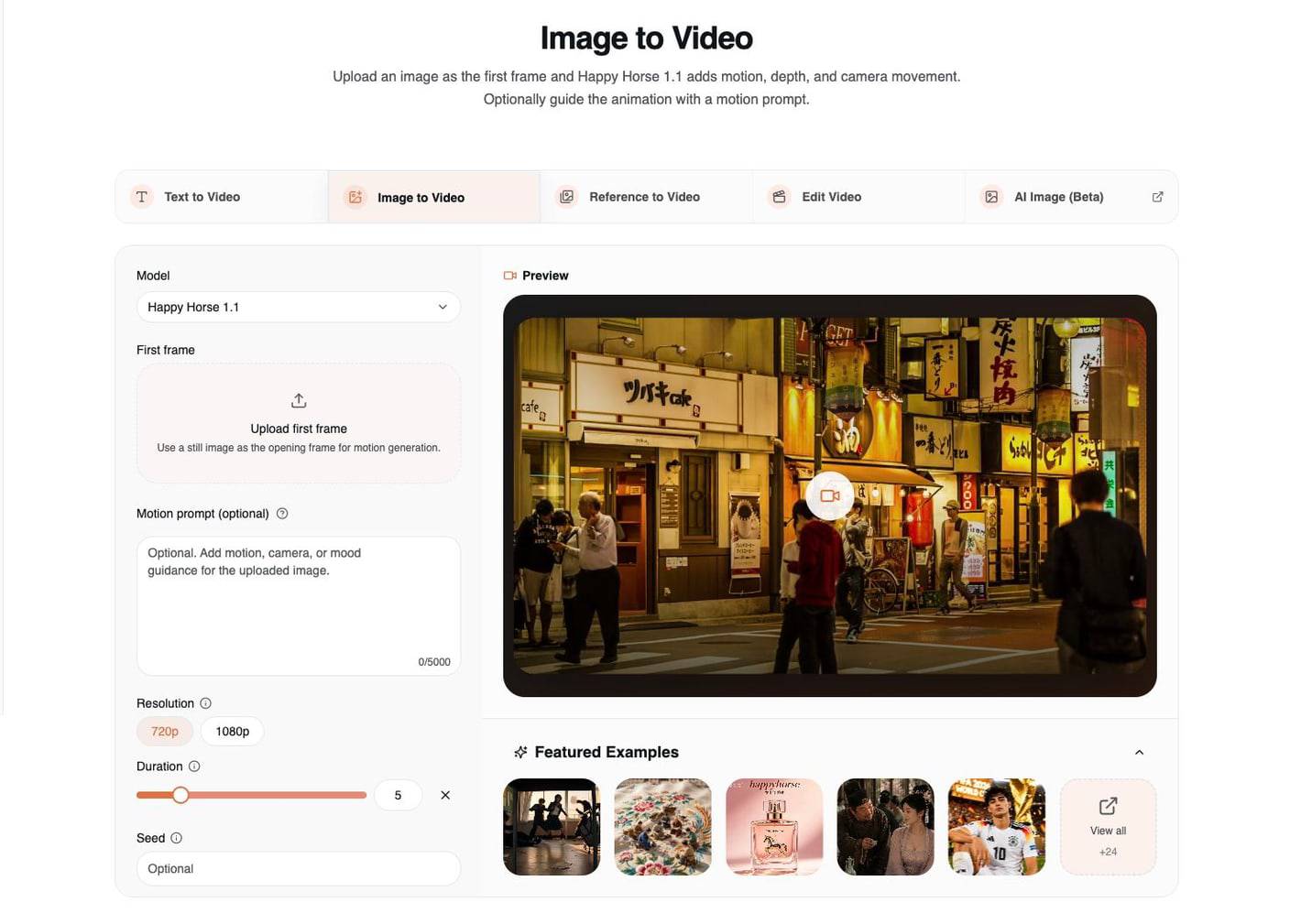
Image-to-video is strongest when the source image already has:
- one clear subject
- clean lighting direction
- readable foreground and background depth
- the crop you want for the final video
- enough detail for the model to preserve identity or product shape
The practical prompt formula is:
Preserve the uploaded image + add logical motion + add camera movement + protect key details
Example for a product image:
Animate the first-frame perfume bottle with a slow cinematic push-in, soft amber mist drifting around the base, subtle light sweep across the glass, realistic reflections, preserve the bottle shape, label, color, and tabletop composition.
Example for a portrait:
Animate the portrait with subtle blinking, natural breathing, gentle hair movement, and a slow camera drift. Preserve the face, outfit, background composition, and original lighting.
For this mode, do the crop before upload. If you want a vertical short, prepare a vertical first frame. If you want a widescreen landing page loop, prepare a widescreen first frame. Image-to-video is not the place to ask the model to radically reframe a finished composition.
The current I2V featured examples are good references for different source-image jobs: a classroom action scene, a detailed craft image, a perfume product shot, and an ancient tavern-style scene. The pattern is consistent: strong source image first, restrained motion second.
Image-to-video examples to study
The perfume sample is the easiest I2V pattern to reuse for commercial work: preserve the product, add atmosphere, then let camera and light movement create the premium feeling.
The classroom fight sample is a harder I2V case. It is useful because the prompt spends its detail budget on cause-and-effect action, environment interaction, and camera synchronization.
For a deeper guide on this workflow, read Happy Horse AI Image to Video: Complete Guide with Examples.
3. Reference to Video: Preserve Identity and Style
Use Reference to Video when a prompt alone is not enough. This mode lets you upload multiple references and describe how they should control the generated video.
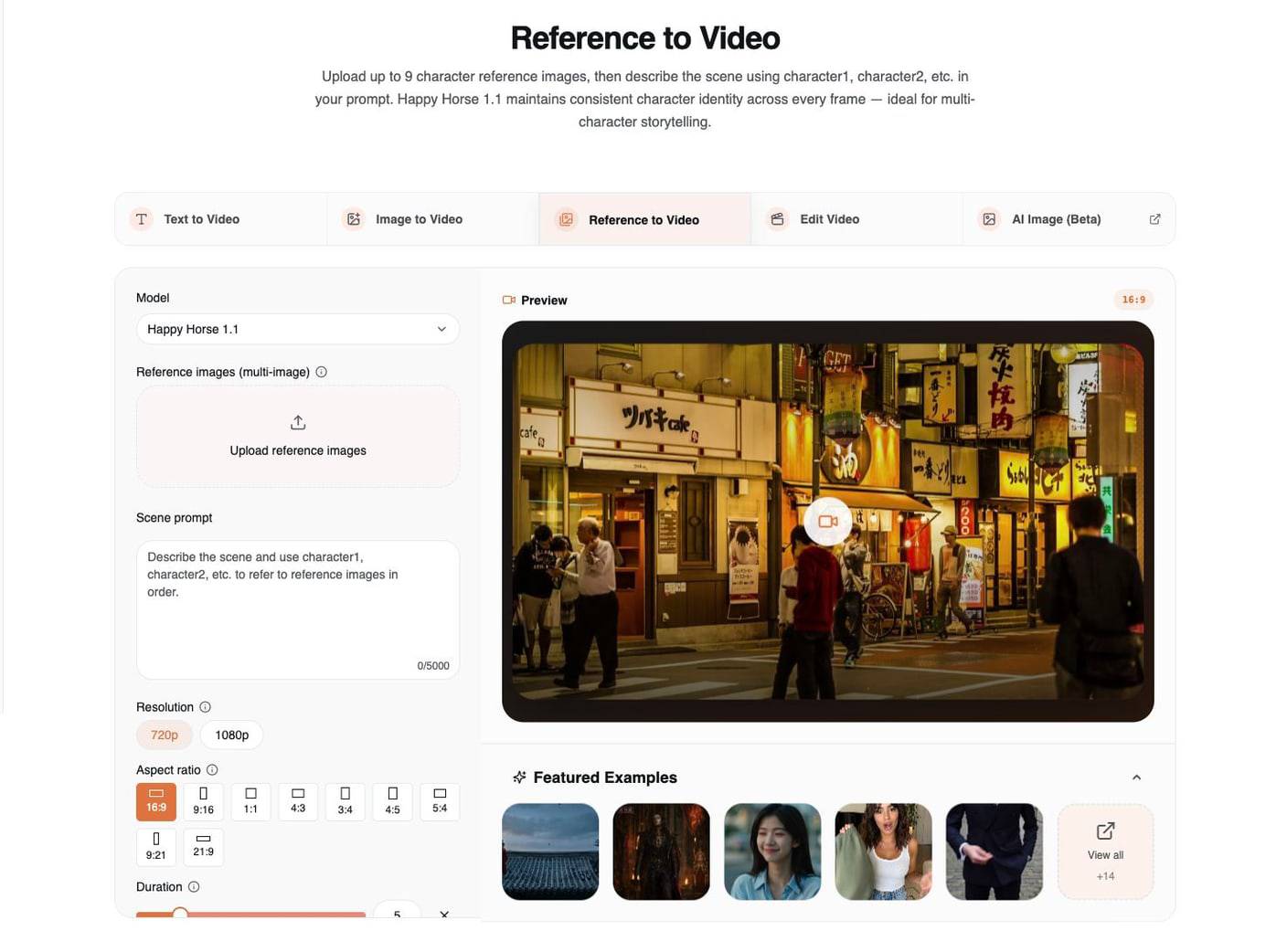
Happy Horse 1.1 supports up to 9 reference images in this workflow. The important part is not only uploading images; it is naming their roles clearly in the prompt.
Use this structure:
Use character1 for [identity/face/outfit].
Use character2 for [second person or creature].
Use image3 for [location/product/style].
Describe the action, camera, lighting, and audio.
Example:
Use character1 as the swordsman, preserving his face, black robe, and silver hair. Use character2 as the dragon princess, preserving her crown and scale-like shoulder armor. They face each other in a rainy palace courtyard, slow circular camera movement, dramatic lantern light, restrained martial arts motion, cinematic fantasy realism, 16:9.
Reference-to-video is best for:
- character consistency across scenes
- multi-character storytelling
- product videos where the item must stay recognizable
- influencer or presenter concepts with stable outfit and face details
- ad campaigns where the same visual language needs to repeat
The current R2V featured examples cover the right range: martial arts scenes, fantasy character pairing, expression changes, live-shopping presentation, and object-focused prompts. When you study them, pay attention to how the text assigns reference roles. A vague prompt like "use these images" is weaker than "use character1 for identity, image2 for outfit, and image3 for product shape."
Reference-to-video examples to study
The martial arts sample is a direct role-mapping example: image1 and image2 are treated as the two fighters, while the prompt defines the shared scene and action.
The live-shopping sample shows why R2V is useful beyond fantasy or action. The prompt maps references to presenter, outfit, product, and home setting, then gives timed speech beats.
Settings That Matter Across All Three Pages
Most failed generations come from a mismatch between intent and settings, not from one bad adjective in the prompt.
| Setting | Use it this way |
|---|---|
| Duration | Start with 5 seconds for testing. Use 8-10 seconds when the motion needs time to develop. Avoid asking for too many action beats in 3 seconds. |
| Resolution | Iterate in 720p; move to 1080p when the concept is worth polishing. |
| Aspect ratio | For text-to-video and reference-to-video, set the final platform ratio before generation. For image-to-video, prepare the first frame in the crop you want. |
| Seed | Use only after you have a prompt direction worth exploring. It is better for controlled variation than for rescuing a weak prompt. |
| Audio | Turn audio on when dialogue, ambience, music, or action sound is part of the scene. If you need a silent visual loop, say so in the prompt. |
| Reference images | Use fewer, clearer references before uploading all 9. Each reference should have a job. |
If you are writing prompts from scratch, keep 50 Happy Horse AI Prompts That Actually Work open as a companion. The examples there are older 1.0 patterns, but the prompt structure still transfers well to 1.1.
Prompt Templates You Can Reuse
Text-to-video template
[Subject] is [action] in [environment]. The camera [movement], with [lighting] and [mood]. Include [audio cue]. Keep [style constraint]. Format: [aspect ratio], [duration].
Image-to-video template
Animate the uploaded image with [small motion], [camera movement], and [environmental detail]. Preserve [identity/product shape/composition/lighting]. Avoid changing [protected detail].
Reference-to-video template
Use character1 as [role] and preserve [identity details]. Use image2 as [style/location/product reference]. Create [scene action] with [camera movement], [lighting], and [audio/mood]. Keep all key references consistent.
Common Mistakes
Mistake 1: Asking text-to-video for fixed identity.
If identity must stay stable, use reference-to-video instead.
Mistake 2: Uploading a weak first frame.
Image-to-video cannot reliably fix bad lighting, messy composition, or unclear subject identity.
Mistake 3: Using every reference image just because you can.
Nine references are available, but three clear references often beat nine redundant ones.
Mistake 4: Forgetting the target format.
A TikTok-style vertical video and a YouTube-style widescreen clip should not start from the same ratio.
Mistake 5: Overloading short durations.
Do not ask for five camera moves, three emotions, and a full action sequence in a 5-second clip. Pick the one moment that matters.
Recommended Starting Recipes
| Goal | Page | Starting settings | Prompt direction |
|---|---|---|---|
| Fast concept scene | Text to Video | 720p, 5s, target ratio | Clear subject, one action, one camera move |
| Social ad product loop | Image to Video | Product image, 1080p final | Preserve product, add mist/light sweep/slow push-in |
| Character story beat | Reference to Video | 2-4 references, 5-8s | Map character1, character2, location/style |
| Dialogue or ambience test | Text or Reference | Audio on, 5-8s | Write the spoken line or sound bed directly |
| Campaign consistency | Reference to Video | Same reference set across attempts | Keep reference roles stable, vary scene action |
FAQ
What is the best Happy Horse 1.1 mode to start with?
Start with text-to-video if you only have an idea, image-to-video if you already have a finished still image, and reference-to-video if identity, product shape, wardrobe, or style consistency matters.
Does Happy Horse 1.1 support image-to-video?
Yes. Happy Horse 1.1 supports image-to-video on the dedicated Image to Video page. Upload a first frame, then use the motion prompt to describe camera movement and scene motion.
How many reference images can I use?
The Happy Horse 1.1 reference-to-video workflow supports up to 9 reference images. Use clear role labels such as character1, character2, or image3 in the prompt so the model knows what each reference controls.
Should I use 720p or 1080p?
Use 720p for faster prompt testing and 1080p when you are ready to polish a strong direction. Resolution does not fix a weak prompt, so iterate on scene structure before spending more on final quality.
Does Happy Horse 1.1 replace video edit?
Not yet for every workflow. Happy Horse 1.1 is the default for text-to-video, image-to-video, and reference-to-video. If you need to edit an existing video, use the current video-edit workflow until 1.1 edit support is part of the public generator flow.
Try the Three Happy Horse 1.1 Pages
The easiest next step is to open the page that matches your starting asset:
If you are still deciding what changed in the model itself, start with the Happy Horse 1.1 release guide, then come back here and test the three workflows side by side.